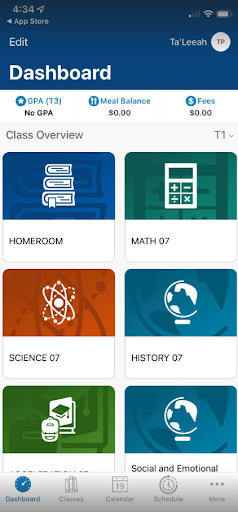
Create a PowerSchool Parent Portal Account
Follow these instructions to create a username and password to Breakthrough's PowerSchool Parent Portal using any Internet browser. From the Portal, you will be able to view all of your scholars' attendance, assignments and grades.
STEP 1: Open your web browser and enter the following URL in the search bar: https://ps-bt.metasolutions.net/public/
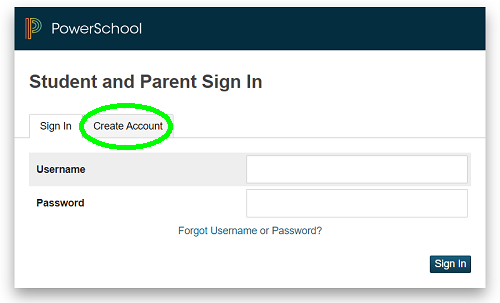
STEP 2: Select the “Create Account” tab
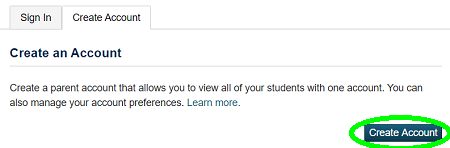
STEP 3: At the bottom area of the Parent Portal Login page, click on the “Create Account” button:
STEP 4: Complete the “Parent Account Details” section.

STEP 5: Complete the section titled “Link Students to Account.” If you do not have your scholar’s log-in information, contact the school’s Front Office.

STEP 6: Once you have filled in the information for your children, click on the “Enter” button at the bottom of the page.

STEP 7: If the information was entered accurately, you will see the following page indicating that your account has been created and telling you to check your email for a verification link.

STEP 8: Sign in to the email you used to create your PowerSchool account. You should have received a verification email that looks like the one pictured below (check your Spam or Junk folder if you don’t see it).

STEP 9: Click on the link in the email, then log in with the username and password you created for yourself in Step 4.

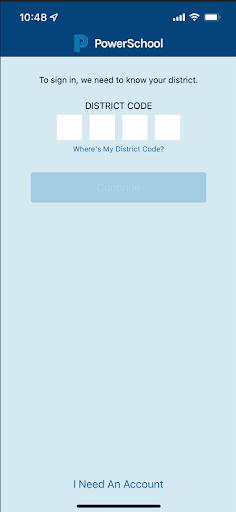
If you would like to download the PowerSchool app for smartphone or tablet once you have set up your account, our district code is JXML.
PowerSchool Parent App
Once you have followed the steps above, you can access the PowerSchool Parent Portal App. This will provide you easy access from your mobile device!
STEP 1: Download the PowerSchool Mobile App
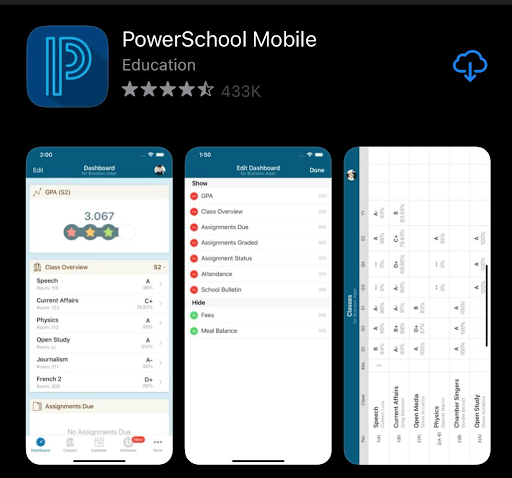
STEP 2: Enter District Code. Our district code is JXML.
STEP 3: Login using username and password created.

STEP 4: That’s it! All grades and attendance information should be accessible!